Why Does Marvel Rivals Keep Crashing? Here's the Fix
Marvel Rivals has quickly become one of the most anticipated superhero games, bringing together iconic characters in intense multiplayer battles. Players worldwide have been diving into this action-packed experience, but many are facing a frustrating roadblock: constant game crashes.
The crashing issues plaguing Marvel Rivals range from sudden black screens to complete system failures. Some players can't even get past the startup screen, while others experience crashes mid-game that ruin their competitive matches. These problems affect both high-end gaming rigs with Intel i9 processors and RTX 4090 graphics cards, as well as more modest setups.
Why does Marvel Rivals keep crashing? The answer isn't always straightforward. Multiple factors contribute to these stability issues, from outdated graphics drivers to corrupted shader caches. Some crashes are so severe they trigger blue screen errors, indicating deeper system-level conflicts.
Understanding what causes these crashes is the first step toward enjoying uninterrupted gameplay. Whether you're dealing with crashes on startup or random disconnections during matches, identifying the root cause helps you apply the right fix.
This guide breaks down the most common reasons behind Marvel Rivals crashing and provides tested solutions that have helped thousands of players get back into the game. Each fix targets specific causes, giving you multiple approaches to solve your crashing problems.
Common Causes of Marvel Rivals Crashing
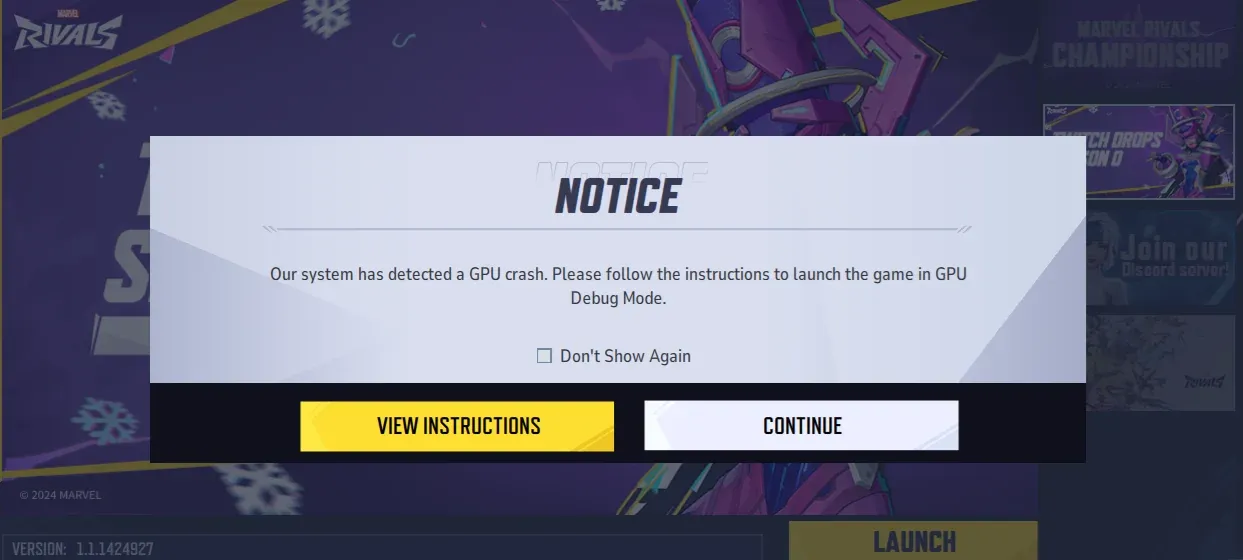
Understanding why marvel rivals keeps crashing requires examining several technical factors that affect game stability. These crashes can occur at different points - some players experience marvel rivals crashing on launch, while others face marvel rivals crashing mid-game scenarios that disrupt their gameplay experience.
1. Graphics Driver Issues
Outdated GPU drivers represent the most frequent culprit behind Marvel Rivals instability. Your graphics card relies on drivers to communicate properly with the game, and when these drivers become incompatible or corrupted, crashes become inevitable. The marvel rivals crashing GPU problem often stems from this exact issue.
NVIDIA Users: Rollback Strategy
NVIDIA users have reported significant success with nvidia driver rollback strategies. Many players discovered that newer driver versions, particularly those released after version 576.02, introduced compatibility problems with Marvel Rivals. Rolling back to this stable version has resolved crashing issues for numerous users who were experiencing:
Random crashes during character selection
Black screen crashes during intense combat sequences
Complete system freezes requiring hard restarts
Blue screen errors with kernel security check failures
Clean Driver Installation
The driver problem affects both high-end and mid-range systems. Players using RTX 4090 cards with Intel i9-13900KS processors have experienced the same driver-related crashes as those running more modest hardware configurations.
Clean driver installation provides another effective solution. Simply updating drivers through Windows Update or GeForce Experience sometimes leaves behind corrupted files from previous installations. These remnants can create conflicts that manifest as game crashes.
Here's what makes driver issues particularly problematic:
Shader compilation errors that cause the game to crash during loading screens
Memory allocation problems where the GPU can't properly handle the game's graphics demands
DirectX compatibility conflicts between the driver and Marvel Rivals' rendering engine
Some players have found success by completely removing their current drivers using Display Driver Uninstaller (DDU) before installing fresh driver versions. This method eliminates any lingering files that might interfere with game stability.
Driver-related crashes typically occur without warning and can happen at any point during gameplay, making them particularly frustrating for competitive players.
2. Game Settings and Performance Strain
Marvel Rivals keeps crashing when your system struggles to handle demanding visual settings. Running the game on ultra or high graphics settings creates significant strain on your GPU and CPU, often resulting in marvel rivals crashing mid game or marvel rivals crashing on launch.
The game's advanced rendering features consume substantial system resources. When your hardware reaches its limits, you'll experience:
Sudden game crashes during intense combat scenes
System freezes requiring a hard restart
Marvel rivals crashing gpu related errors
Frame rate drops followed by complete crashes
High graphics settings crash scenarios become more common when your system lacks sufficient VRAM or processing power. Players with mid-range hardware frequently report stability issues when attempting to run maximum visual settings.
The solution involves lower graphics settings marvel rivals configuration. Adjusting these key settings dramatically improves stability:
Texture Quality: Set to Medium or Low
Shadow Quality: Reduce to Medium
Effects Quality: Lower to Medium
Anti-Aliasing: Disable or use basic FXAA
V-Sync: Turn off completely
These adjustments reduce the computational load on your graphics card while maintaining playable visual quality. Many players discover their marvel rivals crashing issues disappear entirely after implementing these changes. The performance gains often outweigh the minor visual compromises, creating a smoother gaming experience without frequent interruptions.
3. Shader Cache Corruption
Your GPU's shader cache acts as a storage system for pre-compiled graphics instructions, helping Marvel Rivals load textures and visual effects faster during gameplay. When this cache becomes corrupted, it creates a domino effect that leads to marvel rivals keeps crashing scenarios across different situations - whether you're experiencing marvel rivals crashing on launch or dealing with marvel rivals crashing mid game interruptions.
Shader cache problems marvel rivals players face often stem from incomplete downloads, system crashes during cache creation, or conflicts between different driver versions. These corrupted files force your marvel rivals crashing gpu to work harder as it repeatedly tries to process damaged shader data, eventually causing the game to crash entirely.
The corruption becomes particularly problematic when combined with outdated gpu drivers or after performing an nvidia driver rollback, as the cache may contain incompatible shader instructions from previous driver versions.
Interestingly, similar shader cache corruption issues have been reported in other gaming contexts as well. For instance, PCSX2 users have encountered similar problems which resulted in game crashes.
How to Clear Your Shader Cache:
Close Marvel Rivals completely
Open NVIDIA Control Panel (right-click desktop)
Navigate to "Manage 3D Settings"
Click "Shader Cache" and select "Off"
Apply changes and restart your computer
Delete shader cache folder manually:Press Win + R, type %localappdata%
Find and delete the NVIDIA shader cache folder
Re-enable shader cache in NVIDIA Control Panel
Launch Marvel Rivals to rebuild clean cache files
4. System Stability and Hardware Conflicts
Marvel Rivals crashing can happen in different ways - from crashing when you launch the game to crashing while playing - each indicating specific problems. The game's demanding nature puts a lot of pressure on your system, especially the graphics card part, which can reveal hardware weaknesses that might otherwise stay hidden.
Understanding Different Types of Crashes
There are two main types of crashes that indicate serious instability:
Black screen crashes: This occurs when your screen goes black and the game stops responding.
Blue screen errors: Also known as Blue Screen of Death (BSOD), this error screen appears when your system encounters a critical error and needs to restart.
These failures at the system level often suggest that your hardware is under stress beyond what it can handle. The dreaded kernel security check failure error indicates that your system's security protocols are detecting potentially harmful behavior from your hardware, forcing an emergency shutdown to prevent damage.
High-End Systems Are Not Exempt
Even high-end systems can experience these problems. Users with Intel i9-13900KS processors and Nvidia RTX 4090 graphics cards have reported frequent crashes, proving that raw performance doesn't guarantee stability. These powerful components generate a lot of heat and consume significant power, creating conditions where even minor hardware conflicts become amplified.
The Role of Overheating in Crashes
Overheating issues in gaming PCs play a crucial role in how often crashes occur. When the temperatures of your CPU or GPU exceed safe limits, the system automatically reduces performance or shuts down completely. Poor airflow in the case, dust buildup, or malfunctioning cooling solutions can turn stable hardware into components prone to crashing.
To prevent such issues, it's important to regularly monitor temperatures, especially during long gaming sessions when Marvel Rivals pushes your hardware to its limits.
5. Compatibility Mode Fixes
Windows compatibility mode offers a solution when Marvel Rivals keeps crashing due to operating system conflicts. This feature forces the game to run using older Windows protocols, which can resolve stability issues that occur with newer Windows 10/11 systems.
Many players experiencing Marvel Rivals crashing on launch or Marvel Rivals crashing mid-game have found success by switching to Windows 8 compatibility mode. This method works particularly well when crashes stem from DirectX conflicts or system-level incompatibilities rather than outdated GPU drivers or hardware issues.
Setting up Windows 8 compatibility mode:
Right-click on the Marvel Rivals executable file
Select "Properties" from the context menu
Navigate to the "Compatibility" tab
Check the box for "Run this program in compatibility mode for:"
Select "Windows 8" from the dropdown menu
Click "Apply" and "OK"
This approach addresses Marvel Rivals crashing GPU issues that aren't related to driver problems, creating a more stable gaming environment without requiring NVIDIA driver rollback procedures.
Detailed Troubleshooting Steps to Fix Crashing Issues in Marvel Rivals
1. Updating and Managing Drivers Properly
Your graphics drivers serve as the critical bridge between Marvel Rivals and your GPU hardware. Outdated or corrupted drivers frequently cause the game to crash unexpectedly, freeze during matches, or trigger system-wide blue screen errors. Keeping these drivers current ensures optimal performance and stability.
Why Clean Driver Installation Matters
Standard driver updates often leave behind remnants of previous versions, creating conflicts that manifest as crashes in demanding games like Marvel Rivals. A clean installation removes all traces of old drivers before installing fresh ones, eliminating potential compatibility issues.
Step-by-Step Clean Driver Installation Process
Download Display Driver Uninstaller (DDU) from the official website
Boot into Safe Mode by holding Shift while clicking Restart, then navigate to Troubleshoot > Advanced Options > Startup Settings
Run DDU and select your GPU manufacturer (NVIDIA/AMD)
Choose "Clean and Restart" to completely remove existing drivers
Download the latest drivers directly from NVIDIA or AMD's official website
Install the fresh drivers using the downloaded installer
NVIDIA-Specific Considerations
Many players report success with NVIDIA driver version 576.02 for Marvel Rivals stability. If you experience crashes with newer drivers, consider rolling back to this version. Access the NVIDIA Control Panel and navigate to Manage 3D Settings to verify your driver version.
Driver Management Best Practices
Check for driver updates monthly rather than relying on automatic updates
Create a system restore point before installing new drivers
Monitor crash patterns after driver updates to identify problematic versions
Keep your motherboard chipset drivers updated alongside GPU drivers
Alternative Driver Sources
If official drivers cause issues, consider using NVIDIA Studio Drivers instead of Game Ready drivers. Studio drivers prioritize stability over cutting-edge performance, which can reduce crash frequency in Marvel Rivals.
Regular driver maintenance prevents most crash-related issues and ensures your system can handle Marvel Rivals' demanding graphics requirements without instability.
2. Adjusting In-Game Graphics Settings for Stability
High graphics settings can push your system beyond its limits, causing Marvel Rivals crashing issues that disrupt your gaming experience. The game's demanding visual effects and rendering processes often overwhelm hardware, leading to unexpected shutdowns and system instability.
Resolution Adjustments
Resolution adjustments serve as your first line of defense against crashes. Lowering your resolution from 4K to 1440p or 1080p significantly reduces the processing load on your GPU. This simple change can stop Marvel Rivals from crashing PC issues without sacrificing too much visual quality.
Graphics Quality Settings
Graphics quality settings require careful calibration for stable gameplay:
Set Texture Quality to Medium or Low
Disable Ray Tracing features completely
Turn off V-Sync to reduce input lag and potential conflicts
Lower Shadow Quality to Medium
Reduce Effects Quality to minimum settings
Disable Anti-Aliasing or use the lowest available option
Performance Mode Settings
Performance mode settings provide additional stability benefits. Switch to "Performance" or "Ultra-Performance" mode in the graphics menu to prioritize frame stability over visual fidelity. These modes automatically adjust graphics settings for less crash occurrences by optimizing resource allocation.
Testing these settings individually helps identify which specific options trigger crashes on your system. Start with the most aggressive reductions, then gradually increase quality settings until you find the sweet spot between visual appeal and system stability.
3. Clearing GPU Shader Cache for Improved Stability
Your GPU's shader cache stores compiled shaders to speed up game loading, but corrupted cache files can trigger frequent crashes in Marvel Rivals. Clear shader cache fix crash issues by removing these problematic files and allowing your system to rebuild them fresh.
For NVIDIA Users:
Open NVIDIA Control Panel from your system tray or Start menu
Navigate to Manage 3D Settings in the left panel
Click the Global Settings tab
Scroll down to find Shader Cache Size and set it to 10 GB or higher
Apply the changes and restart your computer
Manual Cache Clearing Method:
Press Windows + R and type %localappdata%
Navigate to NVIDIA Corporation > NV_Cache
Delete all files in this folder (keep the folder itself)
For AMD users, look for AMD > DxCache folder instead
Steam Users Additional Step:
Launch Steam, right-click Marvel Rivals in your library, select Properties > Local Files > Verify Integrity of Game Files. This process ensures your game files remain intact while the shader cache rebuilds during your next gameplay session.
Regular shader cache maintenance prevents accumulation of corrupted data that leads to system instability. The rebuilding process happens automatically when you launch Marvel Rivals, though initial loading times may increase temporarily.
4. Monitoring System Health and Avoiding Overclocking Risks during Gameplay Sessions
System temperature monitoring becomes critical when trying to stop Marvel Rivals from crashing pc. High-end hardware like Intel i9-13900KS processors and RTX 4090 graphics cards generate significant heat during intense gaming sessions. Using monitoring software like MSI Afterburner, HWiNFO64, or Core Temp allows you to track real-time temperatures and identify potential overheating gaming pc fix crash scenarios before they cause system instability.
Temperature Warning Signs:
CPU temperatures exceeding 85°C during gameplay
GPU temperatures reaching 83°C or higher
Sudden frame drops accompanied by temperature spikes
System fans running at maximum speed consistently
Overclocking presents another major risk factor for Marvel Rivals crashes. While pushing your CPU or GPU beyond stock settings might seem appealing for better performance, aggressive overclocks often destabilize the entire system. Many users report that reverting to stock clock speeds immediately resolves their crashing issues.
Safe Overclocking Practices:
Test stability with stress testing tools before gaming
Increase clock speeds gradually in small increments
Monitor temperatures closely during extended play sessions
Keep voltage adjustments minimal to reduce heat generation
Hardware stress from Marvel Rivals can expose unstable overclocks that appear stable in other games. If you experience crashes with overclocked settings, return your CPU and GPU to default values first before exploring other troubleshooting methods like performing a clean install nvidia drivers or adjusting game settings.
It's also worth noting that certain models, such as the Acer Nitro 5, have been reported to experience random crashes during gameplay. If you're facing similar issues with your device, it may be helpful to explore some of the solutions discussed in this Acer community thread.
5. Reinstalling Marvel Rivals Completely as a Last Resort Option if All Else Fails!
When standard troubleshooting methods fail to stop Marvel Rivals from crashing pc, a complete reinstallation becomes your most powerful weapon against persistent crashes. This nuclear option addresses corrupted game files, registry entries, and configuration settings that might survive regular repair attempts.
Complete Uninstallation Process:
Uninstall through Steam/Epic Games Launcher ight-click Marvel Rivals in your library
Select "Uninstall" and confirm the removal
Remove Residual Files Navigate to your installation directory (usually C:\Program Files\Steam\steamapps\common\)
Delete any remaining Marvel Rivals folders manually
Clear saved game data from %AppData% and %LocalAppData% directories
Clean Registry Entries (Advanced users only)Use CCleaner or similar tools to remove leftover registry entries
Search for "Marvel Rivals" entries and delete them carefully
Fresh Installation Steps Restart your computer to clear memory
Download Marvel Rivals again through your preferred launcher
Install to a different drive if possible to avoid previous file conflicts
This clean reinstall marvel rivals pc fix crash method eliminates corrupted shader caches, damaged configuration files, and conflicting settings that standard repairs cannot touch. The process takes 30-60 minutes depending on your internet speed but provides the highest success rate for resolving marvel rivals crashing issues that resist other solutions.
Before attempting this method, ensure you've tried updating GPU drivers and adjusting graphics settings, as reinstallation requires significant time investment.
Additional Tips and Best Practices for Smooth Gameplay Experience in Marvel Rivals Beyond Just Fixes!
Prevent Marvel Rivals crashing with these proactive maintenance habits that keep your gaming system running smoothly:
Monitor system temperatures during gameplay using tools like MSI Afterburner or HWiNFO64
Close unnecessary background applications before launching the game to free up system resources
Set Windows power plan to High Performance mode for consistent gaming performance
Disable Windows Game Mode if experiencing stuttering or crashes
Keep your system clean by regularly running disk cleanup and defragmentation
Optimize PC gaming stability by maintaining adequate free storage space on your primary drive - aim for at least 15GB available. Regular system restarts help clear memory leaks that can contribute to Marvel Rivals crashing issues.
Consider creating a dedicated gaming profile in your GPU control panel with optimized settings specifically for Marvel Rivals. This approach eliminates the need to adjust settings repeatedly and ensures consistent performance across gaming sessions.
Regular driver maintenance and system monitoring prevent most stability issues before they become problematic.