How to Customize Marvel Rivals HUD and Accessibility Options
A well-configured HUD (Heads-Up Display) stands as a crucial element for success in Marvel Rivals. The game's interface displays vital information - from health bars to ability cooldowns - directly impacting player performance and decision-making during matches.
Accessibility options enhance the gaming experience for players with different needs and preferences. These customization features allow:
Adjusting visual elements for better clarity
Modifying control schemes for comfort
Personalizing display settings for optimal visibility
This guide explores the available HUD and accessibility options in Marvel Rivals, helping you tailor your gameplay interface. We'll walk through each customization setting, share practical tips, and highlight ways to optimize your gaming experience within the current system limitations.
Understanding the HUD in Marvel Rivals
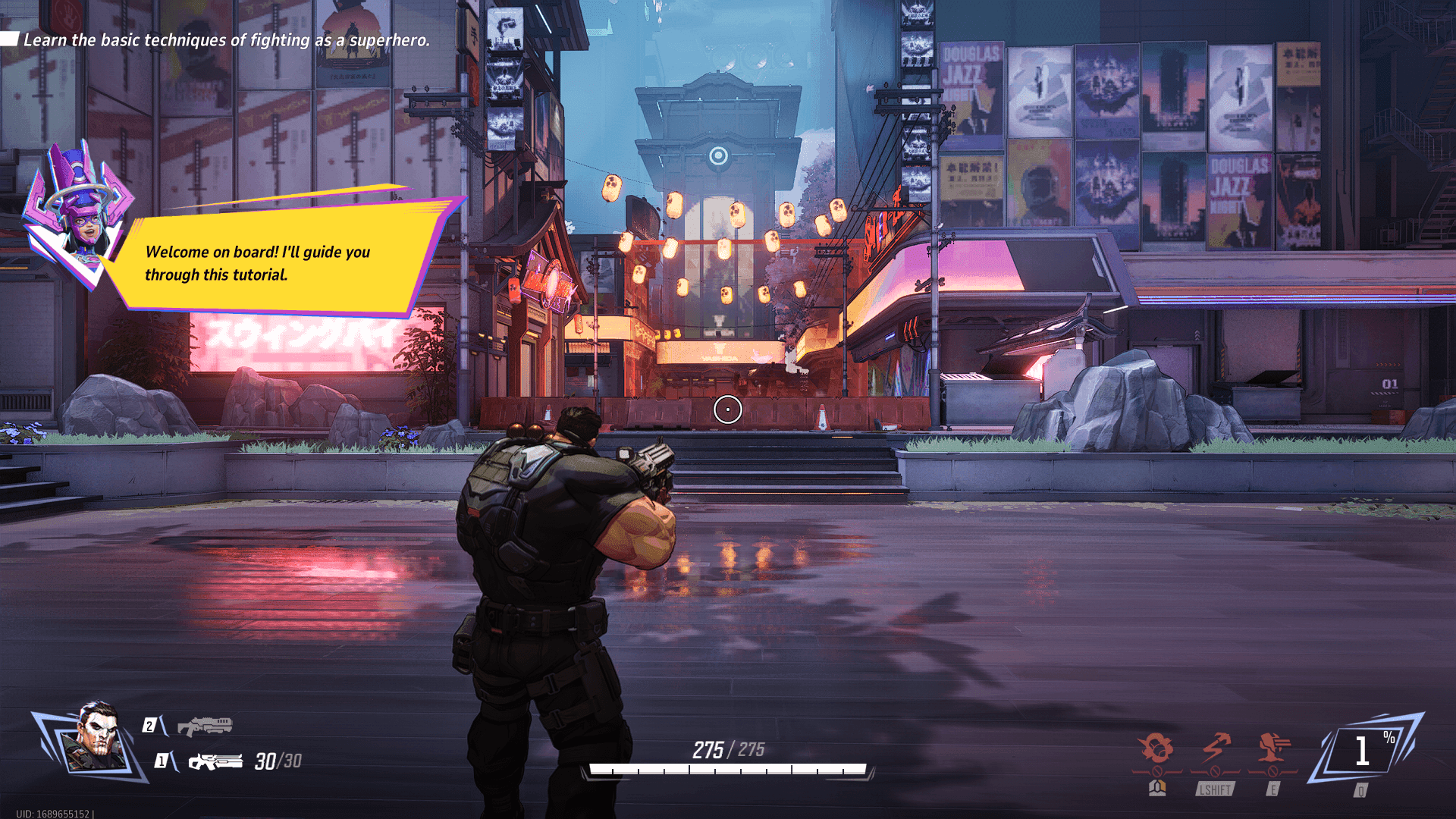
The Heads-Up Display (HUD) serves as your digital command center in Marvel Rivals, displaying critical information without blocking your view of the action. This interface overlay shows real-time game stats, status effects, and combat information directly on your screen.
Key HUD Components:
Health Bars - Track your character's remaining health and shield status
Ability Cooldowns - Display the recharge status of your hero's powers
Ultimate Meter - Shows progress toward your character's ultimate ability
Team Status - Indicates ally positions and health conditions
Combat Indicators - Signal incoming attacks and damage numbers
Reticle - Aids in targeting and aim precision
A well-configured HUD can make the difference between victory and defeat in Marvel Rivals' fast-paced matches. Players who optimize their HUD layout gain better awareness of critical information, react faster to threats, and maintain strategic advantage during intense team fights.
The default HUD settings might not suit every player's needs. Some may find certain elements too distracting or difficult to read during heated battles. Others might need larger text or different color schemes to process information effectively. Customizing these elements helps create a personalized interface that matches your playstyle and visual preferences.
For instance, if you're playing as Namor, a Duelist hero known for his ranged combat skills, having a clear view of your health bars and ability cooldowns is crucial for maintaining distance while dealing damage. On the other hand, if you're using Magik, another Duelist hero but with exceptional close-range combat skills, you might benefit from an optimized reticle for precise targeting.
Similarly, if you choose to play as Adam Warlock, a Strategist hero known for supporting his team while dealing consistent damage, understanding team status through the HUD can greatly enhance your gameplay. Lastly, if you prefer the robust playstyle of Thor, a Vanguard hero renowned for his durability and disruptive melee combat abilities, having quick access to combat indicators can help you charge into battles more effectively.
Customizing HUD Size and Visibility
Adjusting your HUD size in Marvel Rivals takes just a few simple steps:
Open the Settings Menu from the main screen
Navigate to Combat Settings or Interface Options
Look for the HUD Size Adjustment slider
Drag the slider left to decrease or right to increase UI elements
The size adjustment affects multiple HUD components:
Health bars
Ability cooldown indicators
Damage numbers
Team status indicators
Objective markers
Players can scale the HUD between 80% and 120% of the default size. This range helps accommodate different screen sizes and viewing distances, though some players might find these limits restrictive.
Current Limitations:
No individual element scaling
Unable to reposition HUD components
Fixed minimum/maximum size boundaries
All elements scale uniformly
A larger HUD size benefits players who:
Play on 4K displays
Sit farther from their screens
Need better visibility during intense fights
Have vision impairments
Smaller settings work well for:
Competitive players wanting minimal distractions
Those using smaller monitors
Players who prefer a cleaner screen layout
The uniform scaling system keeps the interface consistent but might not satisfy players seeking granular control over specific elements.
For competitive players, understanding counters can also be crucial, and having a smaller, less distracting HUD could help focus on these strategic elements during gameplay.
Reticle Customization Options
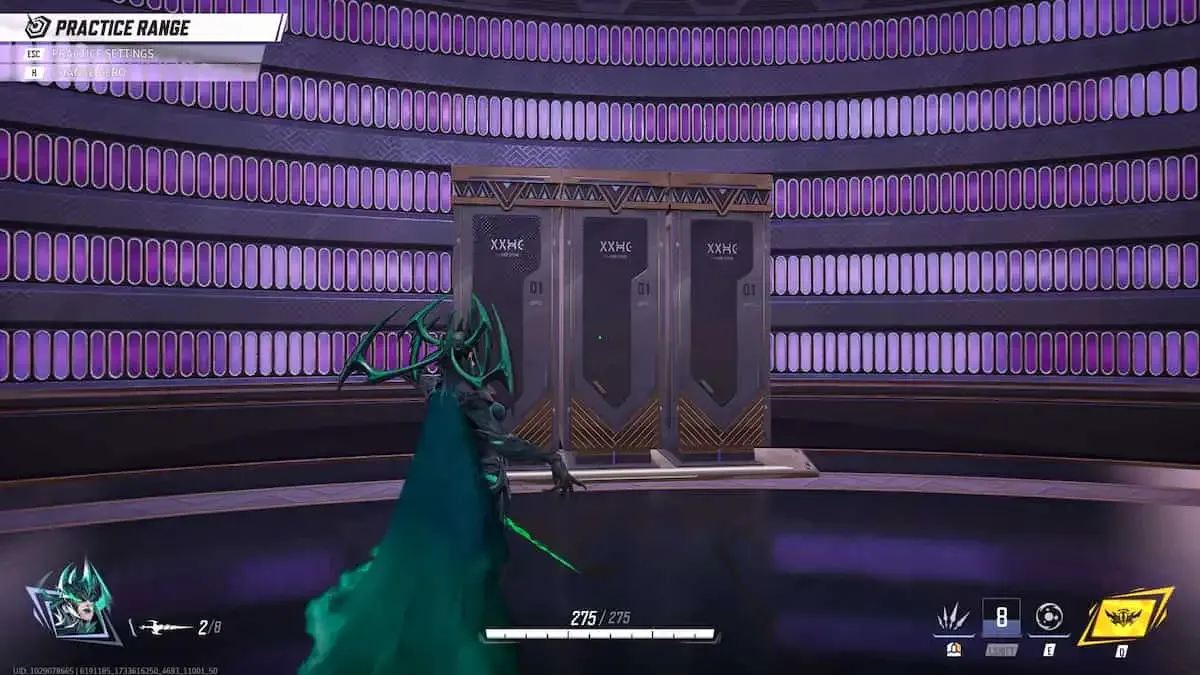
Marvel Rivals offers players multiple reticle customization options to enhance their aiming precision and visual comfort during gameplay. The game includes three distinct reticle types:
Classic Crosshair - A traditional four-point design
Dot Sight - A minimalist single-point option
Dynamic Circle - An expanding/contracting ring system
Changing Your Reticle Type
To change your reticle type:
Open the Settings menu
Navigate to Combat Settings
Select Reticle Options
Choose your preferred reticle type
Adjusting Reticle Animation Settings
The reticle animation settings allow players to adjust how their crosshair responds during gameplay:
Static - Maintains consistent size and position
Dynamic - Expands during movement or firing
Adaptive - Changes based on weapon type
Fine-Tuning Your Reticle
Players can fine-tune their reticle's:
Color (RGB selection)
Opacity
Thickness
Center gap size
These customization options serve practical purposes beyond aesthetics. A well-configured reticle improves target acquisition and reduces eye strain during extended gaming sessions. Players using characters with precision-based abilities, like Hawkeye, benefit from tailored reticle settings that match their playstyle.
Moreover, characters such as Loki with unique abilities, can further utilize these reticle settings to enhance their cunning strategies on the battlefield.
Accessibility Settings Related to the HUD
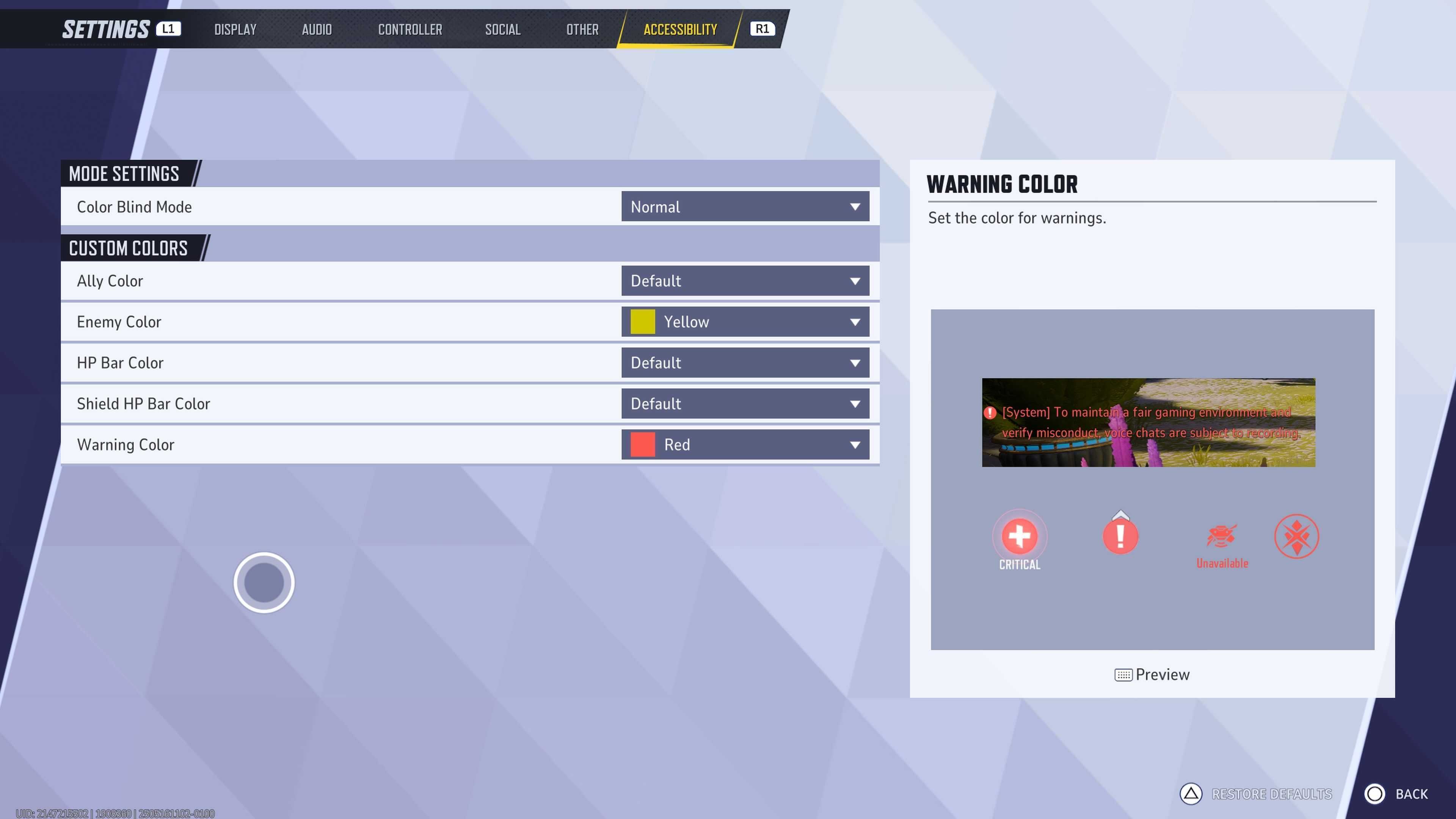
Marvel Rivals includes essential accessibility options focused on health bar color customization. Players can select from a range of preset color schemes for health bars through the settings menu, making vital information easier to track during intense matches.
The health HUD color selection serves multiple purposes:
Color Distinction - Different colors help players with color vision deficiencies distinguish between ally and enemy health bars
Visual Clarity - Custom colors reduce eye strain during extended gaming sessions, especially when players make use of high contrast color schemes which are beneficial for low vision users.
Personal Preference - Players can choose colors that stand out against various map backgrounds
Players with specific visual needs can adjust these settings:
Navigate to Settings > Accessibility
Select "Health Bar Colors"
Choose from available preset options
Test colors in the preview window
Apply changes and return to game
The current accessibility features also include:
High contrast mode for improved readability
Opacity adjustments for HUD elements
Text size scaling for status effects
Background dimming options
These settings create a more inclusive gaming experience, though the customization options remain somewhat limited. Players seeking specific accommodations might need to combine multiple settings to achieve their desired visual setup.
The game's accessibility features focus primarily on visual adjustments, with the health bar color system serving as the cornerstone of HUD-related accessibility options.
Additional Control Customizations for Accessibility
Marvel Rivals includes robust button mapping options in its settings menu. Players can access these customization features through:
Settings > Controls > Button Mapping
The game supports full controller remapping, allowing players to:
Reassign primary and secondary abilities
Customize dodge and ultimate ability buttons
Adjust camera control sensitivity
Modify targeting preferences
These control adjustments serve essential accessibility needs. Left-handed players can mirror control schemes, while those with limited mobility in specific fingers can move critical actions to more comfortable positions.
The control settings also include:
Input Hold Time - Adjusts how long buttons need to be pressed
Double-Tap Sensitivity - Changes timing requirements for dodge moves
Auto-targeting Preferences - Helps players with precision challenges
Players with repetitive strain injuries benefit from the game's toggle options, replacing button holds with single presses. The adjustable dead zones for controller sticks help players with hand tremors maintain precise control during matches.
The control customization menu includes visual representations of button layouts, making it easier to understand and implement changes. These settings can be saved as custom profiles, allowing multiple players to maintain their preferred control schemes on the same device.
Character-Specific Control Recommendations
Understanding the unique abilities of each character in Marvel Rivals can enhance gameplay significantly. Here are some recommendations for customizing controls based on character roles:
Invisible Woman: As a character who relies on invisibility and force fields, customize your controls for quick access to her primary abilities.
The Punisher: Known for high damage output and area control, remap controls to improve weapon handling for better combat effectiveness.
Jeff the Land Shark: If you prefer a supportive role, adjust controls to facilitate healing actions and enhance team performance.
Storm: Customize your controls for area-of-effect damage and crowd control abilities to maximize impact in battles.
Magneto: Ensure your controls are set up for quick response times as you manipulate metal for offense and defense strategies.
By tailoring your control scheme according to each character's strengths, you can optimize gameplay and contribute more effectively in matches.
Limitations and Community Feedback on Customization Features
Marvel Rivals current HUD and accessibility customization options present notable limitations. Players can't fully disable individual HUD elements, leaving some users struggling with screen clutter during intense matches. The fixed positioning of certain interface elements restricts players from creating their ideal layout setup.
The Marvel Rivals community has voiced specific requests for enhanced customization features:
Toggle Options for HUD Elements
Ability to hide damage numbers
Option to remove skill cooldown indicators
Control over teammate indicator visibility
Advanced Visual Adjustments
Custom color coding for different ability types
Scaling options for specific HUD sections
Transparency controls for interface elements
Players with visual impairments have highlighted the need for additional contrast settings and text size options. The current color selection for health bars lacks the granular control needed for optimal visibility across different map environments.
Recent community discussions point to potential improvements the development team could implement:
Expanded reticle customization with user-created designs
Movable HUD elements for personalized layouts
Enhanced colorblind modes with broader spectrum support
Detailed opacity controls for each interface component
These limitations impact players differently based on their visual needs and playstyles. For instance, a player using the Winter Soldier, a projectile-based Duelist hero in Marvel Rivals, might struggle more with screen clutter due to his ability combos that require precise timing and positioning. The development team's responsiveness to community feedback will shape future accessibility updates.
Tips for Optimizing Your Gameplay Experience with Current Settings
Making the most of Marvel Rivals' existing customization options can significantly enhance your gameplay experience. Here's how to optimize your current settings:
HUD Size Sweet Spot
Start with 75% HUD size as a baseline
Adjust in small increments until you find the perfect balance
Test different sizes during intense combat scenarios
Strategic Color Choices
Set enemy health bars to bright, contrasting colors
Use distinct colors for ally vs enemy indicators
Pick reticle colors that stand out against both dark and light backgrounds
Control Layout Optimization
Map frequently used abilities to easily accessible buttons
Group similar actions together for muscle memory
Test different layouts in the practice mode before committing
Reticle Configuration
Choose simpler reticle designs for better target acquisition
Disable reticle animations if they cause distraction
Match reticle size to your typical engagement range
Performance Tips
Reduce HUD opacity to minimize screen clutter
Position critical information closer to the center of your screen
Keep ability cooldowns within your peripheral vision
These optimizations work together to create a cleaner, more responsive gaming interface. Regular adjustments based on your evolving playstyle will help maintain peak performance as you master different heroes and combat scenarios.
Conclusion
Customizing HUD and accessibility options in Marvel Rivals creates a personalized gaming experience that matches your playstyle and needs. The current settings - from HUD size adjustments to reticle customization - give you tools to enhance visibility, comfort, and gameplay performance.
These customization options serve as building blocks for a tailored interface. Each small adjustment contributes to a more enjoyable and accessible gaming session. The ability to modify health bar colors, adjust HUD elements, and remap controls puts you in charge of your gaming environment.
Stay engaged with the settings menu as Marvel Rivals evolves. Game updates often bring new customization features based on player feedback. Your perfect setup might be just a few tweaks away - take time to experiment with different combinations and discover what works best for you.
Remember: A well-customized interface empowers you to focus on the action and showcase your skills in Marvel Rivals.